How to Play
Game Interface
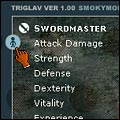
- Status Panel
- Placing mouse cursor over/out the Status Panel, you can bring on/off this window at any time. Toggles this window by clicking the Status Panel, and it can be closed by clicking again the panel or window.
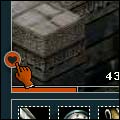
- Healing Orb
- Placing mouse cursor over the Healing Orb while stationary, you can regenerate your vitality at any time.
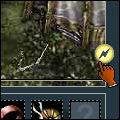
- Special Attack Orb / Kills Panel
- When the Special Attack Orb is blinking, you can do attacking with your Special Attack one time. After using, character can not be using it again until the orb will blink again. See a Special Abilities section for more detail. In addition, placing mouse cursor over the orb, you can see your Kills at any time.
- Game Option Panel (Not Available)
- You can bring up this window at any time by clicking the Option Panel. Drawing Quality has 3 settings: High, Medium, and Low. When set to High, the game is smoothest. It can be closed by clicking again this panel only.
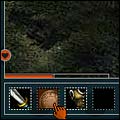
- Inventory
- You can carry 10 items in your inventory. To equip weapons, armor, or other wearable items, left-click the item in inventory. To remove an item, right-click. After an item becomes red color, right-click again. Find out more about an item in inventory by moving mouse cursor over that item. A window pop up with a description of that item and its properties.
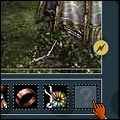
- Treasure Viewer
- Left-clicking on a treasure box on the game screen which you found from creatures or in the floor. When you pick up an item, it goes into your Treasure Viewer. To move an item to your inventory from Treasure Viewer, left-click on it. If your inventory slot is full, you must decide what to carry or what to remove.
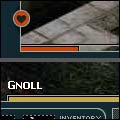
- Vitality Bars
- The red bar indicates the vitality of your character. When you empty the bar, your character will die. The yellow bar indicates the vitality of a creature which you are placing mouse cursor over the creature on the game screen.
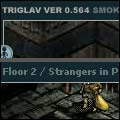
- Current Floor, Game Version
- To right side, display a Floor/Floor Name that is current place of your character. To left side, version number of TRIGLAV. It will be changed when the game has been updated.